Contents
- 1 Common Exchange Mailboxes Export Issues and their Solutions
- 2 1. Export Requests stuck at InProgress or Queued
- 3 2. TooManyLargeItemsPermanentException Error
- 4 3. New-MailboxExportRequest’ is not Recognized as the Name of a Cmdlet Error
- 5 4. Access to the Path is Denied Error
- 6 5. Network and Firewall Issues
- 7 6. Load Balancing Issues
- 8 Conclusion
In Exchange Server, there are two native utilities – the Exchange Admin Center (EAC) and the Exchange Management Shell (EMS) – for exporting mailboxes to PST file or to other database. But while exporting the mailboxes, you sometimes encounter issues and errors and even not able to export the mailboxes. This might happen due to varied reasons, such as lack of permissions, issues with the server, storage problems, and others. In this guide, we will mention some common issues or errors that occur when exporting Exchange mailboxes and also mention the troubleshooting steps to fix them.
Common Exchange Mailboxes Export Issues and their Solutions
Below, we have listed some common issues that may arise while exporting mailboxes in Exchange Server. We will also mention the solutions to resolve them.
1. Export Requests stuck at InProgress or Queued
At times, the mailbox export requests do not complete and remain stuck at InProgress or in Queue. This usually happens if your system’s hard drive or RAM is not able to provide necessary throughput and memory bandwidth to server to perform the process.

Troubleshooting Steps
First, check the export requests status by running the following command:
Get-MailboxExportRequest | Get-MailboxExportRequestStatistics -IncludeReport | Format-List
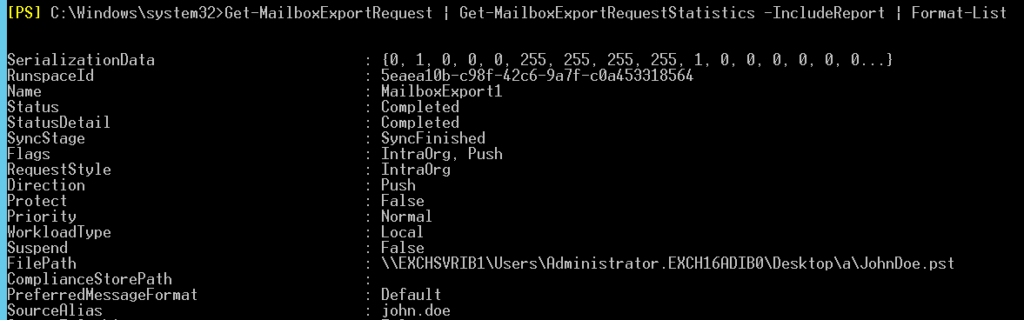
This command provides detailed information about all the export requests. If there are multiple requests in queue, this might be due to slow server performance.
In this case, you can try to remove the Queued export requests by using the below command:
Get-MailboxExportRequest –Status Queued | Remove-MailboxExportRequest
After this, restart the MRS service by using this command:
Restart-Service MSExchangeMailboxReplication

This command will restart the MRS service. You can ignore the warning message (if it comes up) as that is a common occurrence when you restart this service.
Now, you can try to export the mailboxes again.
2. TooManyLargeItemsPermanentException Error
At times, the mailbox export fails with the error – TooManyLargeItemsPermanentException. This often happens when the mailbox you’re exporting contains messages that exceed the large items limit. For instance, if LargeItemLimit is assigned a value of 10 and there are 15 large items in the mailbox, then this will stop the export process.
Troubleshooting Steps
To fix the error TooManyLargeItemsPermanentException, you can increase the LargeItemLimit. Here is an example of the command:
New-MailboxExportRequest -Mailbox <MailboxName> -FilePath <Path> -LargeItemLimit 50 -AcceptLargeDataLoss

In the above command, we have set the large items limit to 50. This means the export will continue even if the mailbox has up to 50 large items. However, these items will not be exported.
3. New-MailboxExportRequest’ is not Recognized as the Name of a Cmdlet Error
When you run the New-MailboxExportRequest cmdlet to export the mailboxes, you may encounter an error message – “The term ‘New-MailboxExportRequest’ is not recognized as the name of a cmdlet, function, script file, or operable program.” This usually happens if you don’t have the required permissions and roles to execute the command.
Troubleshooting Steps
To run the New-MailboxExportRequest cmdlet, you must have the Mailbox Import Export role assigned to your user account. By default, this role is not assigned to any group and even admin. To resolve the error, you need to assign this role to the user account.
First, run this PowerShell command in the EMS to find if your account has the role assigned:
Get-ManagementRoleAssignment -Role “Mailbox Import Export” | where {$_.RoleAssigneeName -eq “youradminuser”}

If the role isn’t assigned, you can assign it by using this PowerShell command:
New-ManagementRoleAssignment -Role “Mailbox Import Export” -User “youradminuser”
4. Access to the Path is Denied Error
You may face a situation where the mailbox export request fails with the error – “Access to the path is denied.” This error message generally shows up when you do not have the necessary permissions on the target (share) folder.
Troubleshooting Steps
First, verify NTFS and share permissions on the target folder. For this, right click on the folder where the mailbox is exported, then click on Properties, go to the Sharing tab and click on Share button to share the permissions.
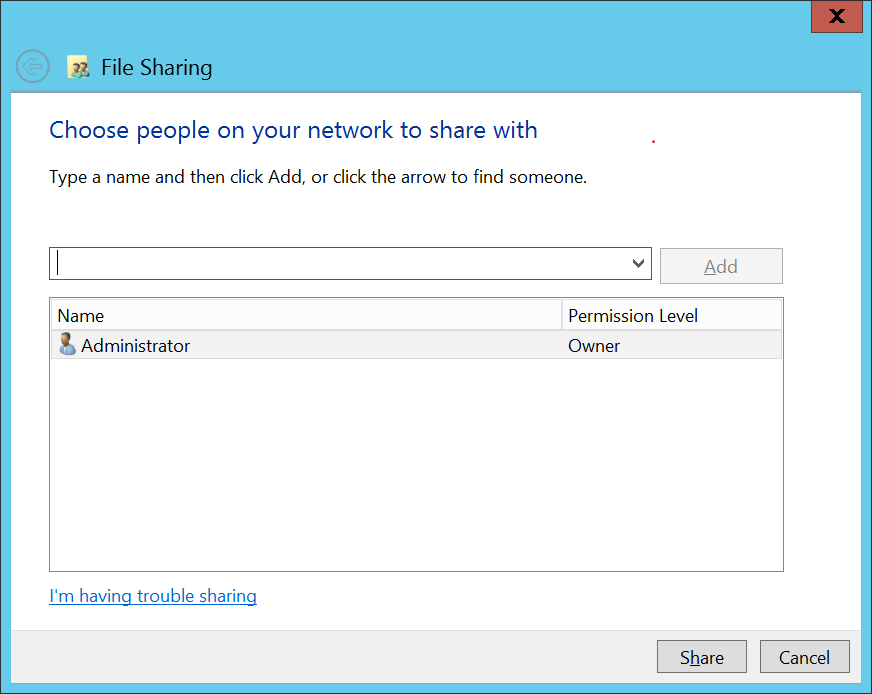
Now, close the File Sharing window and go to the Security tab. Here, select Exchange Trusted Subsystem and click on the edit button.
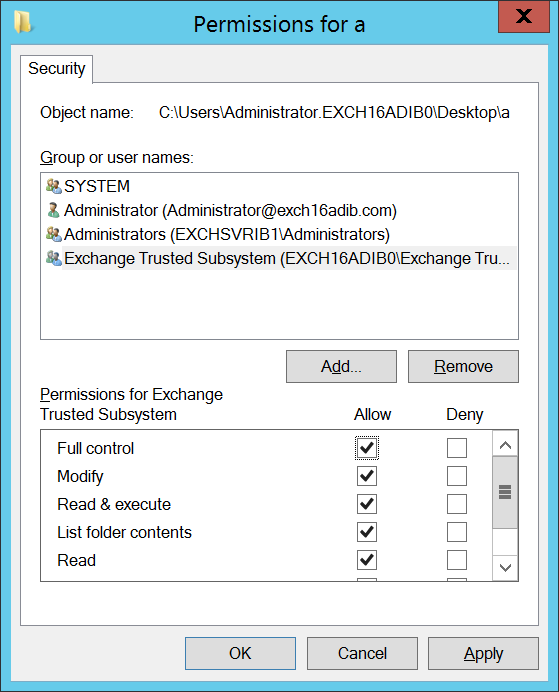
Ensure that your user account and Exchange Trusted Subsystem have Full Control permission. If not, check the checkbox in front of Full Control to provide the permission.
5. Network and Firewall Issues
If network connectivity between your Exchange Server and the file server is unstable, has high latency, or is affected by bandwidth limitations, mailbox exports may fail. Moreover, firewalls can also make UNC paths (networking paths used by MRS for export) inaccessible, which can prevent server from writing the exported PST file to the desired location on the network.
Troubleshooting Steps
- Test connectivity between Exchange and target server using ping or Test-Connection.
- Ensure UNC share can be accessed with Test-Path \\fileserver\share from your Exchange Server.
- Configure firewall rules to allow SMB traffic (port 445) between the Exchange Server and file server.
- Use network monitoring or diagnostic tools to check for packet loss and latency spikes during mailbox export jobs.
6. Load Balancing Issues
MRS requires dedicated connectivity with the same server throughout the export process. However, load balancers, depending on health checks, can distribute export request across multiple servers. This can break the MRS proxy connection established for exporting a mailbox, leading to export failure. In such a case, you may get errors, like:
The call to “net.tcp://<server_name>/Microsoft.Exchange.MailboxReplicationService <server_name> (14.1.218.11 caps:07)” timed out.”
Troubleshooting Steps
- Ensure that the Exchange servers can connect to the load balancer as clients.
- Configure load balancer for sticky sessions to ensure MRS connection is maintained with the same server during the export process.
- Another option is to bypass the load balancer before using the export request. This can be done by including the -MRSServer switch in the New-MailboxExportRequest cmdlet and specifying a CAS server that is not part of the CAS array.
Conclusion
When exporting mailboxes in Exchange Server, you may encounter several issues and errors that can even lead to the export failure. In this article, we have covered some common issues and errors that you might occur when exporting the mailboxes and also provided solutions to resolve them. To overcome such issues and errors, you can take the help of a specialized EDB to PST converter tool, such as Stellar Converter for EDB. This tool can export mailboxes from EDB files to PST and various other formats. It doesn’t require any specific permissions and roles to perform the process. Apart from user mailboxes, it can export archive mailboxes, shared mailboxes, and public folders with complete integrity and precision. It also allows direct export of the mailboxes and other items from EDB file to a live Exchange Server or Microsoft 365 tenant.