



Contents
PDF files are widely used in document sharing because they maintain consistent formatting across different devices and operating systems. However, we often need to convert PDFs into editable Word documents. For example, updating reports, revising contract terms, reusing document text, or revising academic papers.
Fortunately, many tools now make PDF to Word conversion much easier than before. This guide will introduce several practical methods for converting PDF to Word, including professional PDF software, online converters, and built-in tools. We’ll also look at how tools like JOPDF simplify this process.
Why Convert PDF to Word?
PDF files excel at preserving the original document’s appearance, but they are less convenient to edit. If you need to:
* Modify text or update content
* Reuse portions of an existing document
* Add new chapters or adjust formatting
* Collaborate with others to edit a document
Convert scanned documents to editable text
Then, converting a PDF to Word is very useful. Microsoft Word documents (.doc or .docx) offer complete editing flexibility and are better suited for continuous work.
Method 1: Convert PDF to Word Using JOPDF
One of the easiest ways to convert PDF files to Word documents is using professional PDF conversion software. JOPDF is a tool designed to handle common PDF tasks such as file conversion, document compression, text editing, and page management.
Steps to convert a PDF file to a Word document using JOPDF:
- Install and open JOPDF.
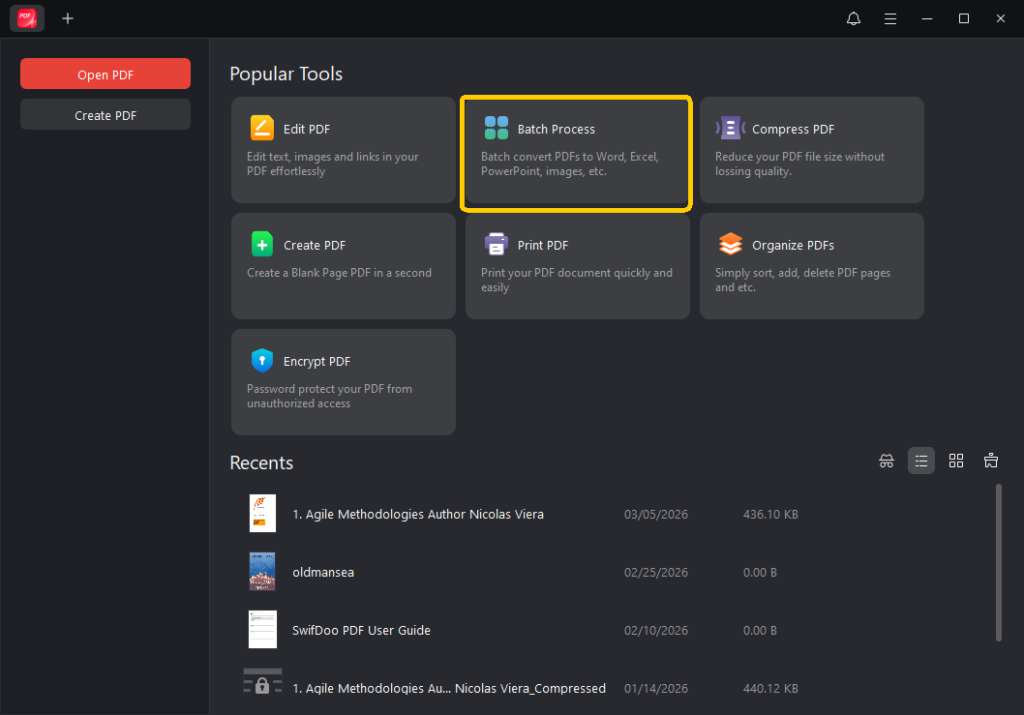
- Click “Batch Process” on the main interface.
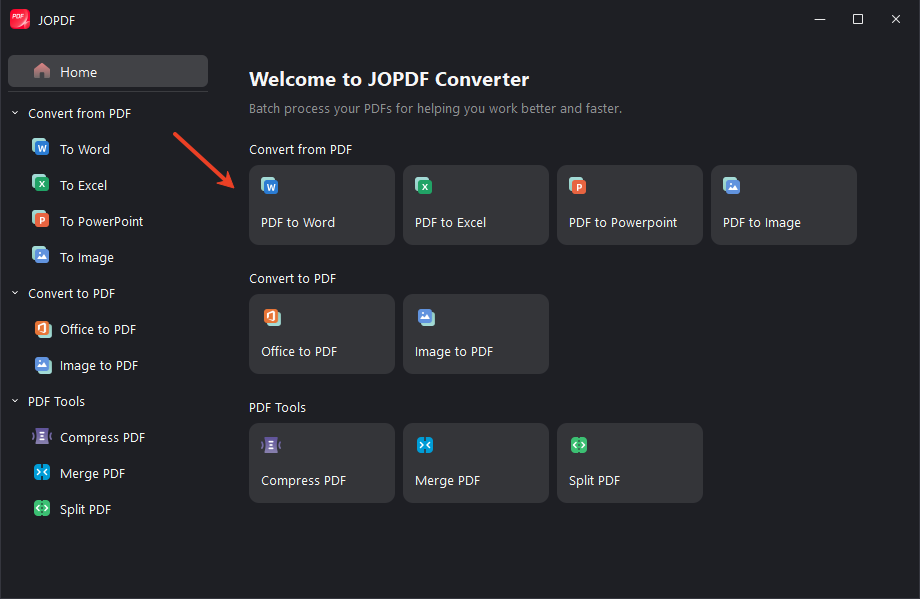
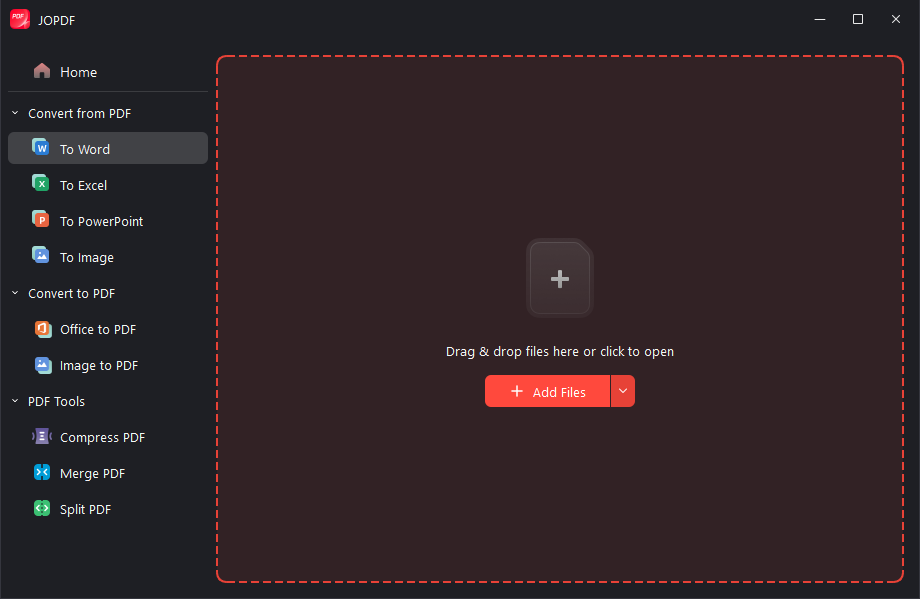
- Select PDF to Word, then select the file you want to convert.
- Select the output format (usually DOC or DOCX) and the destination folder to save the converted file.
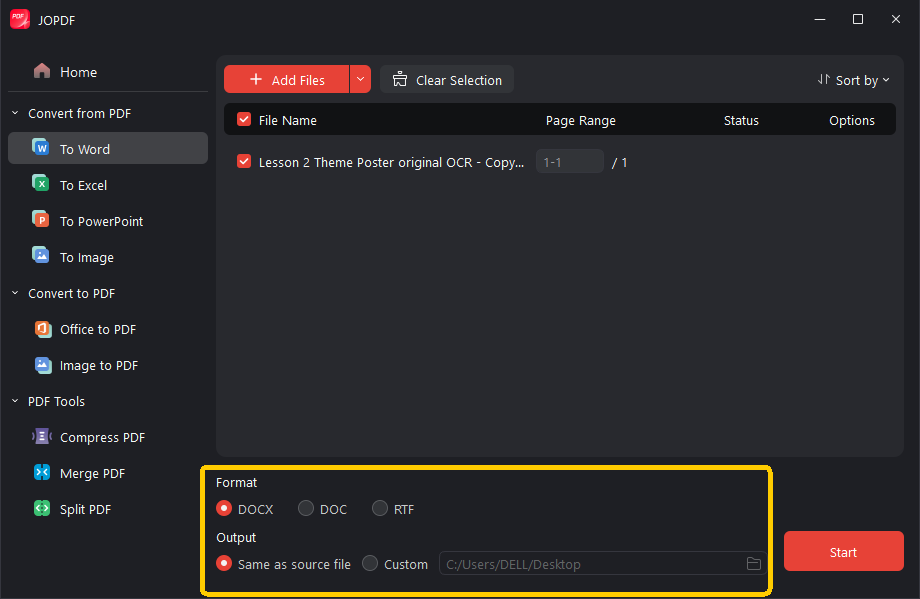
- Start the conversion.
Once the conversion is complete, open the new file in Microsoft Word to edit the content.
Benefits of using JOPDF:
It maintains formatting in most cases.
It supports various PDF management functions.
It has a simple interface, suitable for beginners.
It can be used offline, helping to protect sensitive files.
For users who frequently work with PDF files, having a dedicated tool saves time compared to switching between different online services.
Method 2: Convert PDF to Word Using Microsoft Word
Many people don’t realize that Microsoft Word itself can convert PDF files into editable documents.
Steps
- Open Microsoft Word.
- Click File → Open.
- Select the PDF file you want to convert.
- Word will display a message explaining that the file will be converted to an editable document.
- Click OK to begin the conversion.
After a few moments, the PDF will appear as an editable Word document.
Things to Consider
This method works well for simple PDFs containing mostly text. However, complex layouts, images, or tables may not convert perfectly and could require manual adjustments afterward.
Method 3: Use an Online PDF to Word Converter
Want to convert PDF to Word without installing software? You can use an online converter. Many websites offer this service; upload your PDF file, and you can download a Word document in seconds.
General Steps:
1. Open an online PDF conversion website.
2. Upload your PDF file.
3. Select the “PDF to Word” format.
4. Start the conversion.
5. Download the converted document.
Advantages:
* No software installation required.
* Works anywhere with internet access.
* Converts small files quickly and easily.
Disadvantages:
* There may be file size limits.
* Uploaded files may have privacy concerns.
* Some features require a premium membership.
If your file contains confidential information, using an offline tool like JOPDF might be safer.
PDF to Word Conversion: Tips to Improve Conversion Quality
Most conversion tools work well, but the final quality of a Word document often depends on the structure of the original PDF. To improve conversion results, try these tips:
1. Choose a high-quality PDF source file. Clear text and proper formatting improve conversion accuracy.
2. Avoid PDFs with too many images. If the PDF is entirely composed of images, OCR (Optical Character Recognition) processing may be required.
3. Check formatting after conversion. Even the best converters may need to slightly adjust fonts, spacing, or tables.
- Use professional software for complex documents. If your PDF contains charts, tables, or multi-column layouts, professional tools like JOPDF usually handle them better than ordinary converters.
In summary
PDF format is stable and suitable for sharing. However, directly editing PDFs can sometimes be inconvenient. Converting PDFs to Word documents allows for flexible text editing, information updates, and easier collaboration.
There are many conversion methods, such as using Microsoft Word, online converters, or professional PDF software. Among these tools, software like JOPDF offers a good balance, capable of both format conversion and document management.
Choose the method that best suits your needs—whether you prioritize convenience, security, or editing features—and in just a few steps, you can transform a static PDF into an editable Word document.